

Make your own printable bingo cards from this template (scroll down to see the instructional video). You can add your own items, upload your own background image, change the font and colour.
Make Your Own Bingo Cards
Customise Your Card
Tap to start
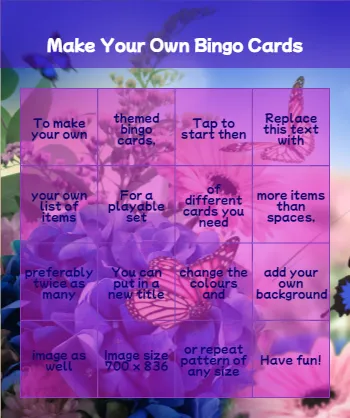
Make Your Own Bingo Cards
BINGO
To make your own
themed bingo cards,
Tap to start then
Replace this text with
your own list of items
For a playable set
of different cards you need
more items than spaces,
preferably twice as many
You can put in a new title
change the colours and
add your own background
image as well
Image size 700 x 836
or repeat pattern of any size
Have fun!
How To Make Your Own Bingo Cards
To get started, tap the example card where it says “Tap To Start”. You’ll now be able to customise the card using the controls and see what your changes look like as you make them. It may help to watch the tutorial video first.

How The Controls Work
Enter A Title
Type in the words you’d like to appear at the top of your card above the grid
Enter words/emojis or numbers
Here’s where you put in the items for your themed bingo card. You will need at least as many items on your list as there are spaces on your card, more if you want to make a set of playable cards with different items on. (We recommend a minimum of twice as many items as spaces for playable cards).
Just want numbers? Head over to the Classic Bingo section where you’ll find fully customisable and playable 75 ball and 90 ball bingo cards to print out or play online.
Select Grid Size
Use the drop down to select 3 x 3, 4 x 4 or 5 x 5 depending on how long a game you want and how many items you have to put on the card.
Select Font Family
Use the drop down to choose one of six text styles
Wrap Words
This is on by default and we recommend leaving it on as otherwise the print will be tiny
Include free space?
This option is only available if the grid is set to 3×3 or 5×5. It leaves the centre square blank.
Checked Square
This controls how a daubed square looks when you play online – the default is white text on a black background but you can set it to anything you like. Click in the box to select.
Header Background
This controls the look of the area above the grid on the card. You can select font colour and background colour (with more than 16 million colours to choose from) and you can also choose to upload and use your own image. To fit exactly, the image should be 700 x 136 pixels but you can use a smaller image and play around with the position, repeat and size controls to get a repeating pattern.
Opacity controls the extent to which the card background shows through the header background. At 100%, the header background will be solid and at 0% you won’t see it at all – you’ll see the header text floating directly on the card background. On this card, it defaults to 50%.
Grid Background
This controls the look of the grid and works the same way as Header Background but includes an extra option, Border Color, to set the colour of the grid lines. Again, opacity has been set to 50% and can be changed. There’s an option to use an image for the background instead of a solid colour but this is not recommended as it can make the text hard to read.
Card Background
This controls the background colour or image for the entire card. To fit exactly, the image needs to be 700 x 836 pixels but again, you can use a smaller image and set the position, repeat and size controls as you wish. We’ve used a nice photo of some flowers and butterflies – to remove it and use a plain background, hit the X and to replace it, hit the Choose Image button and upload your own.
Card Generation
Once you’re happy with the look of your sample card, hit the Generate Bingo Cards button. This will take you to the Print and Invite screen where you can print a set of cards and/or send a link to a printable, playable card to friends via email.
To print, choose the total number of cards you want to print and how many you would like per page, then hit the Generate Printable Cards button to create a set of printable cards, all different from each other.
To invite, enter your email in the Your Email box and your friends’ emails in the Invite Emails box, one per line, then hit the Invite button. A link to a unique bingo card will be sent to each address. We don’t store these email addresses. We do store your email address but only for the purposes of preventing abuse of the bingo card generator.
If you just want to make one card to share on social media, use the Invite button but only fill in the Your Email address. You’ll be sent a link to your card.
How it works?

Choose a theme to start building your free custom bingo cards

You can use our items and backgrounds or add your own.

All of the cards are printable and playable online

Generate a set of cards and you’ll each have a different card to play with.
Design Your Own
A template with instructions and step by step video tutorial for designing your own bingo cards for any occasion you like!
Design Your Own Bingo Cards
All our bingo cards are fully customisable – check out this video tutorial to learn how!

Hello Sue and Happy Saturday.
I’m dropping a note to let you know that I sent up a new review to TrustPilot.
Thank you again for your time and patience ☺
Best wishes,
Betsy
Thank you Betsy, and best wishes to you too!
Hello Sue Dawson!
I had to step away from this project for other obligations. I was helping prepare for two different organizations’ Burns Night Dinners.
I figured out the problem… At least I think so ☺
I think I had tried so many times and did it wrong that there must have been something ‘stuck’ in the cache. I’m not a tech so may not be explaining it correctly.
I opened a ‘private window’ in Firefox, visited your site as if from scratch, & filled in all the info as if for the first time. The cards look great on the screen.
I told the system that I want to print them. I chose to download the set as a pdf. I just printed my first as a sample. It looks beautiful!
Thank you for your patience. I’ll definitely get in and make an update to my review. I was just SO frustrated!
So glad to hear you’ve got it to work! Hope the event goes well.
So glad to hear you’ve got it to work! Hope the event goes well.
Greetings Sue & good morning.
My apologies, but I did not see that you had replied. Thank you for your notes.
My image is a jpg, so that should be okay. Does it need to have a certain minimum or maximum file size?
To explain, I chose 0 opacity for the Header Background because my image has a nice blue sky, so I thought the words could just be on the sky.
I’ll give it another go. {:o)
Hi again Betsy! Sorry for the delay approving/replying (it sat in the moderation queue over the weekend). There is a maximum file size but most images won’t be anywhere near that size. Let me know if I can be any more help.
Hi again Betsy! Sorry for the delay approving/replying (it sat in the moderation queue over the weekend). There is a maximum file size but most images won’t be anywhere near that size. Let me know if I can be any more help.
Also – to print, use the Print function in your browser – there you’ll be able to set up paper size, margins and so on and see a preview.
Hello from Betsy in Mesa, Arizona, USA
I recently found your website. It is a lot of fun. I’m co-hosting a Gal-entine Party & am trying to make a set of BINGO cards to print for the party.
My list of questions dropped in. It was neat to see some of my questions plus my photo choice on the sample page.
But I can’t get the font or header background to change. Am I doing something wrong?
Guidance will be appreciated. ☺
Hi Betsy! You should be able to select different fonts from the drop down under “Select Font Family” and add an image under “Header Background”. I’ve just tested that and it works for me. The opacity cannot be set to 0 (as that would make it transparent and invisible) and the image needs to be a JPG, PNG or GIF. BTW we also have a pre made Galentines theme if that is any use. Let me know if you need any more help.
Hi Betsy! You should be able to select different fonts from the drop down under “Select Font Family” and add an image under “Header Background”. I’ve just tested that and it works for me. The opacity cannot be set to 0 (as that would make it transparent and invisible) and the image needs to be a JPG, PNG or GIF. BTW we also have a pre made Galentines theme if that is any use. Let me know if you need any more help.